
- Online Reputation
- October 7, 2025
- 14 min read
How to get the link to Google review business page
Getting a Google review link is the first step to collecting more authentic reviews. That link makes it easy for customers to leave feedback online. Google often changes where the link lives in the dashboard, so this guide walks you through the most reliable ways to find and share it.
A direct review link removes friction: customers land on the review screen in one tap. That usually means more genuine reviews, a stronger reputation, and better local visibility.
Download now: FREE guide: 13 online review response templates (positive and negative)
Method 1: Create your Google review link from Google Business Profile
The simplest way to get your Google review link is to use your Google Business Profile dashboard (formerly Google My Business). Google generates the link for you so customers can open the review window in one click.
Steps:
1. Open your Google Business Profile dashboard: https://business.google.com/
2. Click Home
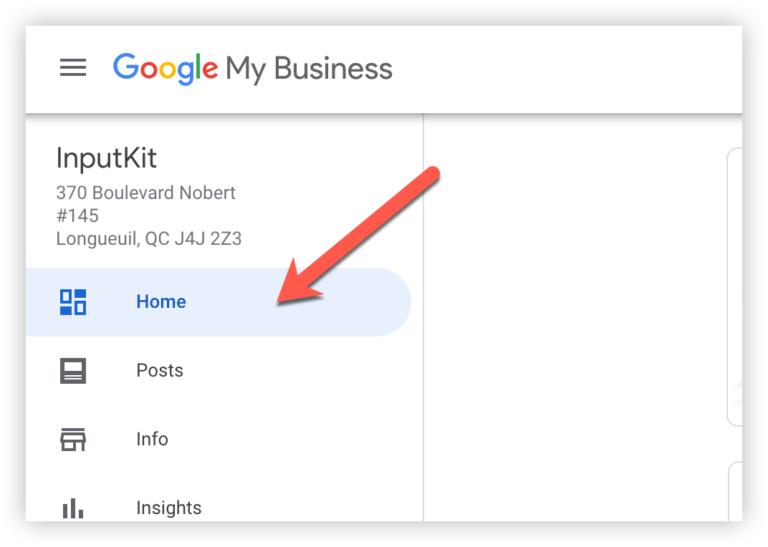
3. Click Ask for reviews (or the equivalent “share review form” control)
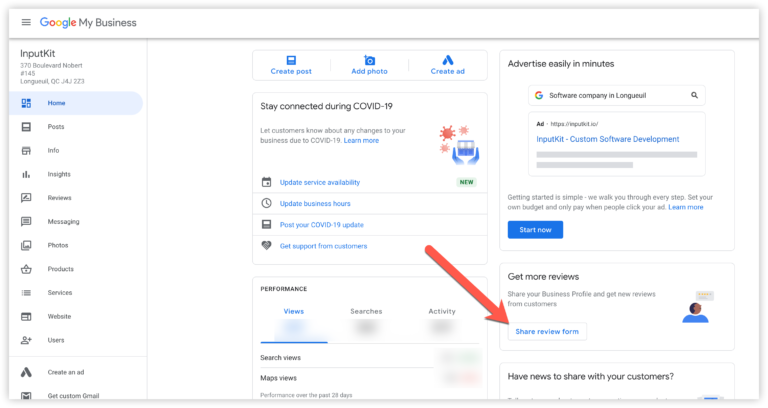
4. Click Copy link to copy the URL to your clipboard.
5. Email or text the link to your customers.
For example, a dental clinic can add the link to appointment confirmation emails. An auto shop can send it in a post-service SMS.
Method 2: Automate Google review requests with a dedicated tool
If you want to save time, use a platform that generates and sends your Google review link automatically.
With InputKit, you connect your Google Business Profile once. The review link is generated for each location, so you do not have to copy and paste links manually.
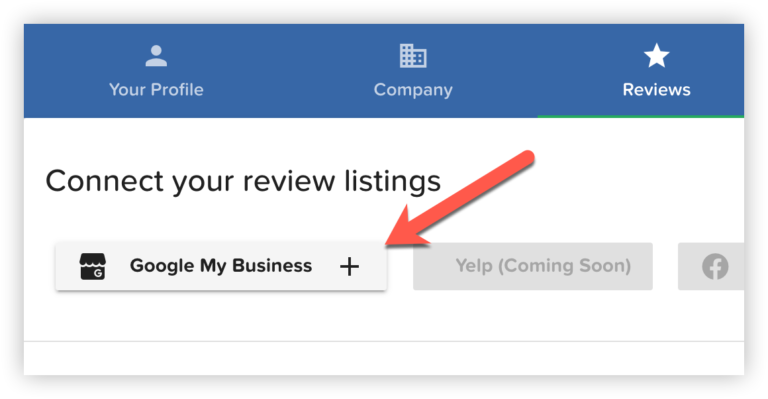
If you operate multiple locations, map each site to the correct Google Business Profile location so every branch gets the right link.
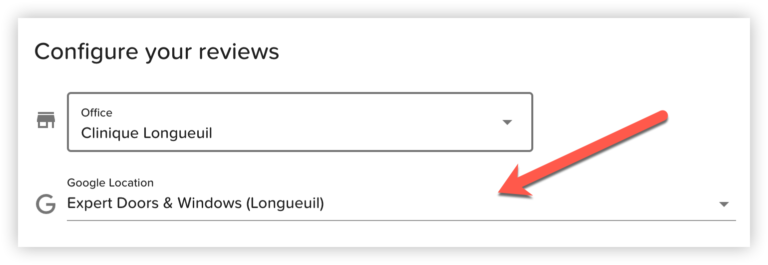
The link goes out automatically to happy customers
Why automation helps
- The review link is sent automatically after each interaction with satisfied customers.
- You save time during busy periods.
- Teams often collect 3–10× more Google reviews per month compared with manual outreach.
Franchises, multi-location clinics, and dealer groups can centralize review requests and still send the correct link per location.

Method 3: Build a manual link with your Place ID
You can also build a review URL with your Google Place ID, a unique identifier for each listing.
Steps:
- Open Google Maps.
- Search for your business.
- In the browser URL, find the segment after
maps/place/.
Then append that ID to:https://search.google.com/local/writereview?placeid=[YOUR-PLACE-ID]
- Test the link on desktop and mobile before sharing it.
This approach is useful when you manage many listings and want full control over the exact URL you distribute.
Method 4: Copy the link from Google Search or the Maps app
You can grab a review link quickly from Google Search or the Google Maps mobile app.
From Google Search:
- Search for your exact business name.
- In the knowledge panel, click Write a review.
- Copy the URL from your browser.
From the Google Maps app:
- Open the app and find your business.
- Open the Reviews tab.
- Tap Write a review and copy the generated link.
This works in a pinch, but URLs are often long, less ideal for SMS or print than dashboard or automation links.
How to use your Google review link effectively
A link alone is not enough. Timing and channel matter.
Timing
- Send the link within 24 hours of the purchase or service while the experience is fresh.
- For recurring services, send it right after a successful visit or renewal.
Channels
- Thank-you emails after purchase or appointments.
- SMS for short, high-intent reminders.
- QR codes at reception or on invoices.
- Email signatures with a “Leave a review” button.
- Occasional social posts for engaged followers.
- A dedicated button on confirmation or contact pages.
Best practices
- Personalize the message.
- Explain why reviews matter for other customers.
- Keep it short: two or three sentences before the link.
- Follow Google’s rules: never pay or incentivize reviews.
Example SMS after a vehicle delivery: “Thanks for trusting us! Your feedback helps others, share your experience in one tap: [Google review link].”
Mistakes to avoid
Rewards for reviews violate Google policy and can get reviews removed.
Waiting too long kills response rates, send the link while momentum is high.
Ignoring negative reviews hurts trust. Reply quickly and professionally. See how to handle negative customer feedback.
Broken or outdated links frustrate customers, test every URL before campaigns.
No process means missed opportunities. Pair your link with a repeatable workflow. Our guide on getting more Google reviews can help.
FAQ
Can I automate sending my Google review link?
Yes. Platforms like InputKit can send the link automatically after each interaction.
Is it legal to ask for Google reviews?
Yes, as long as you do not buy reviews or offer incentives. Read why you should avoid buying Google reviews.
What if I get a negative review?
Respond professionally and quickly. Some reviews can be reported to Google if they break the rules.
Do review links work on mobile?
Yes, mobile-friendly links improve completion rates, especially from SMS.
What if I do not have a Google Business Profile yet?
Create and verify your listing first, then generate your review link from the dashboard.
Conclusion
A clear Google review link turns happy customers into visible social proof. Combine the right generation method with smart timing and channels to grow reviews sustainably.
For more tactics, read how to get more Google reviews, or book a free InputKit demo to automate the entire flow.